
How Databricks Handles Schema Transformations
Databricks simplifies schema transformations by combining Schema Enforcement and Schema Evolution. Schema Enforcement ensures only valid data is written to Delta tables, while Schema Evolution allows tables to automatically adjust to new data structures when enabled. This dual approach ensures data quality and flexibility in dynamic environments.
Key highlights:
- Schema Enforcement: Blocks writes with mismatched schemas, ensuring data consistency.
- Schema Evolution: Allows additive changes like adding columns or expanding data types using options like
mergeSchema. - Delta Lake Features: Supports constraints (e.g.,
NOT NULL,CHECK), safe type widening, and metadata-only operations for renaming/dropping columns. - Auto Loader: Automatically detects and tracks schema changes during data ingestion, even for semi-structured formats like JSON.
For real-time pipelines, tools like Auto Loader and Kafka integration streamline schema management, while options like mergeSchema and overwriteSchema provide control over schema updates. Use these features to maintain efficient, reliable pipelines as data evolves.
Schema Evolution in Databricks | Delta Lake Schema Evolution | Azure Databricks Tutorial | MindMajix
Delta Lake Schema Enforcement Basics
Delta Lake enforces schema checks during the write process to ensure data quality. Every write operation is validated against the table's schema before the data is committed. If the data doesn't match the schema, the write fails, and no data is ingested.
This approach differs from standard Parquet tables, which delay schema validation until the data is read. As Databricks explains:
"Schema enforcement, also known as schema validation, is a safeguard in Delta Lake that ensures data quality by rejecting writes to a table that do not match the table's schema".
This mechanism is particularly important for production systems like machine learning models or business intelligence dashboards. According to Databricks:
"It provides peace of mind that your table's schema will not change unless you make the affirmative choice to change it. It prevents data 'dilution,' which can occur when new columns are appended so frequently that formerly rich, concise tables lose their meaning".
This initial layer of schema validation sets the stage for more detailed rules, which are covered next.
How Delta Lake Blocks Schema Violations
Delta Lake requires incoming data to align with the target table's schema, ensuring that all columns exist and that data types either match or can be safely cast. Missing columns are automatically set to NULL, but extra or mismatched columns cause the write to fail. For safe type conversions, Delta Lake supports automatic casting (e.g., ByteType to ShortType or IntegerType) but rejects incompatible changes like converting a String to an Integer.
Delta Lake also enforces case sensitivity. For instance, it blocks writes where column names differ only in case (like "Foo" and "foo") to avoid data corruption.
Beyond structural checks, Delta Lake supports NOT NULL and CHECK constraints. NOT NULL constraints ensure specific columns cannot contain null values, while CHECK constraints validate conditions for each row (e.g., price > 0). If these constraints are violated, the entire transaction is rejected.
Common Schema Enforcement Errors and Fixes
Schema enforcement errors are common but manageable with the right fixes. One frequent issue is an AnalysisException with the message "A schema mismatch detected when writing to the Delta table". This often happens when the source data includes new columns not present in the target table. To troubleshoot, Spark provides a side-by-side comparison of the table and data schemas in the stack trace.
To handle intentional schema changes, you can enable the mergeSchema option by adding .option("mergeSchema", "true") to your write command. This avoids completely disabling schema enforcement. For data type conflicts, such as a change from String to Integer, use .option("overwriteSchema", "true") along with mode("overwrite") to update the table's schema.
During MERGE operations, errors may arise if a target column is missing in the source dataset. To fix this, explicitly define the column mapping in your UPDATE or INSERT clause instead of relying on INSERT * or UPDATE SET *. If you encounter a DELTA_MULTIPLE_SOURCE_ROW_MATCHING_TARGET_ROW_IN_MERGE error, preprocess the source data to ensure each target key matches only one row, such as by deduplicating the data.
For constraint violations like an InvariantViolationException, clean your source data to remove nulls or values that fail CHECK conditions before writing. Finally, be cautious when updating schemas, as these changes can disrupt concurrent write operations or terminate active Structured Streaming jobs reading from the table.
Using the mergeSchema Option for Schema Evolution
Delta Lake Schema Management Options Comparison: mergeSchema vs autoMerge vs overwriteSchema
Schema evolution allows Delta tables to adapt to changes without disrupting your pipelines. It’s especially helpful for making additive updates, like adding new columns or expanding data types. This ensures your workflows can keep up with evolving business needs without requiring a complete overhaul.
When you add a new column, Delta Lake updates the schema and automatically fills existing rows with NULL. This approach is ideal for gradual updates, letting you keep your data intact while accommodating new requirements. It also complements Delta Lake's strict enforcement by making room for controlled, incremental changes.
Setting Up the mergeSchema Option
To enable schema evolution, include .option("mergeSchema", "true") in your PySpark write command. This activates schema evolution for that specific write operation.
Here’s an example of appending data with a new column to an existing Delta table:
df_new_data.write.format("delta") \
    .option("mergeSchema", "true") \
    .mode("append") \
    .save("/mnt/delta/people_table")
For streaming data, you can use the same option:
(bronze_df.writeStream \
    .format("delta") \
    .option("checkpointLocation", CHECKPOINT_PATH) \
    .option("mergeSchema", "true") \
    .outputMode("append") \
    .toTable("target_table_name"))
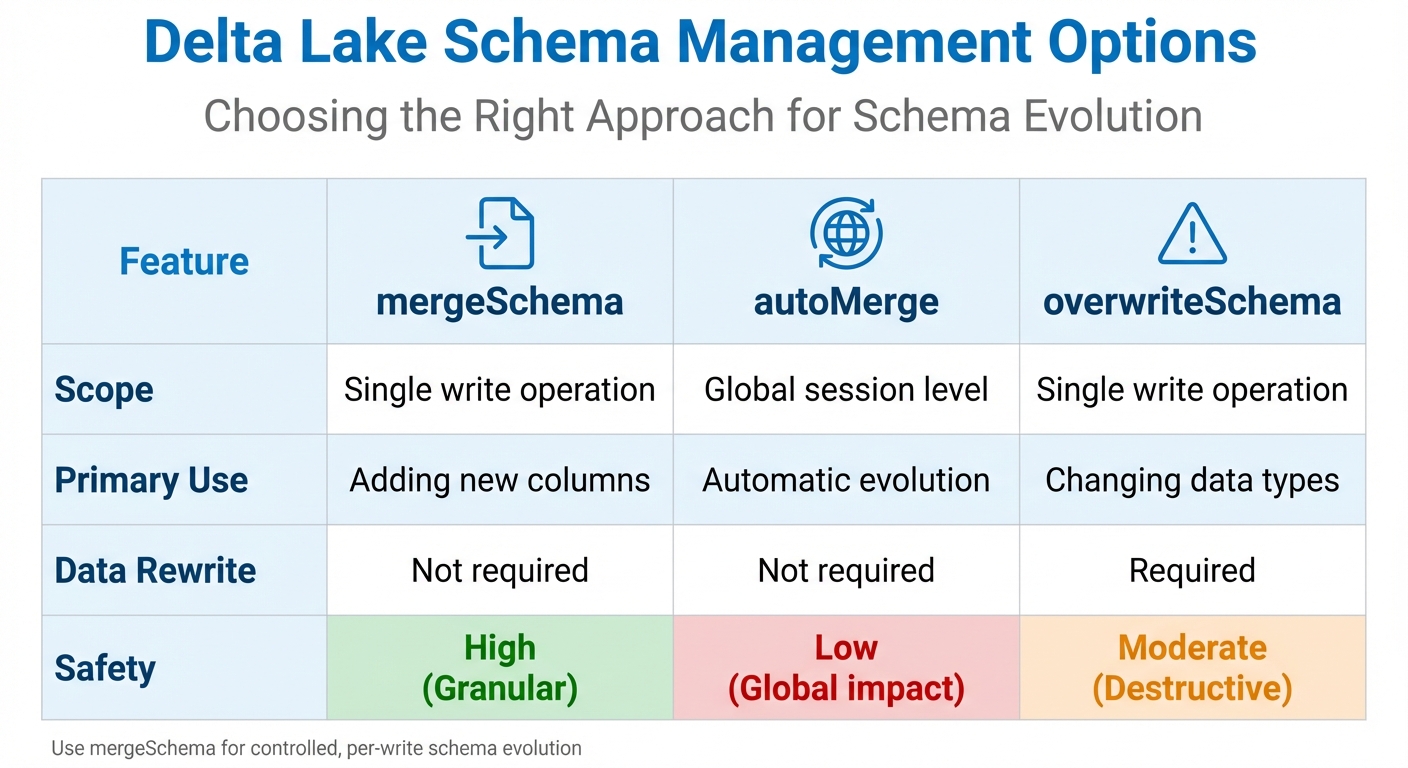
If you want to enable schema evolution across all Delta tables globally, you can set spark.databricks.delta.schema.autoMerge.enabled=true. However, it’s safer to use the per-write option for better control, as global settings might lead to unintended schema changes.
For MERGE operations in Databricks Runtime 15.4 LTS and later, you can use the withSchemaEvolution() method or the SQL syntax MERGE WITH SCHEMA EVOLUTION.
Schema Evolution Best Practices
Use per-write activation for better control. By using .option("mergeSchema", "true"), you can decide which tables should evolve. Data engineer Matthew Powers highlights this approach:
"Delta Lake
mergeSchemaonly applies for a single write to a single table... Delta Lake'sautoMergeoption activates schema evolution for writes to any table".
Test schema changes before deploying to production. Make sure to verify in a staging environment that all downstream processes, such as BI tools and ETL jobs, can handle new columns or NULL values in existing records. Powers advises:
"You should ensure all downstream readers will still work before evolving the schema in your production pipelines".
Set up automatic restarts for streaming jobs. When a streaming query encounters a schema change, it might fail initially as it re-plans the schema. Configuring automatic restarts ensures the query can adapt to the updated schema without manual intervention.
Understand the limitations of mergeSchema. This option only supports additive changes, like adding columns or widening data types (e.g., from Integer to Double). It cannot rename or drop columns. For incompatible changes, such as converting an Integer to a String, use .option("overwriteSchema", "true") with .mode("overwrite") instead.
| Feature | mergeSchema |
autoMerge |
overwriteSchema |
|---|---|---|---|
| Scope | Single write operation | Global session level | Single write operation |
| Primary Use | Adding new columns | Automatic evolution | Changing data types |
| Data Rewrite | Not required | Not required | Required |
| Safety | High (Granular) | Low (Global impact) | Moderate (Destructive) |
Common Schema Changes in Delta Lake
Building on earlier schema evolution techniques, this section dives into specific schema changes and the configurations needed for each. Delta Lake supports two main categories of schema changes: additive changes (like adding columns) using mergeSchema and non-additive changes (like renaming or dropping columns) through Column Mapping.
Knowing the scope and limitations of these changes can help you design smoother data pipelines. Some transformations only require metadata updates, while others might necessitate rewriting data files or restarting streaming jobs.
Adding Columns and Widening Data Types
Adding columns is a frequent operation. You can do this explicitly with the SQL command ALTER TABLE ... ADD COLUMNS or during a write operation by enabling mergeSchema. For existing rows, the new columns are set to NULL.
Type widening, on the other hand, allows you to expand a column's data type without rewriting the entire table. For instance, you can change a BYTE to an INT or a FLOAT to a DOUBLE. This feature was introduced in Delta Lake 3.2 and extended in Delta Lake 4.0. To enable type widening, set the table property delta.enableTypeWidening to true:
spark.sql("""
    ALTER TABLE sales_data
    SET TBLPROPERTIES ('delta.enableTypeWidening' = 'true')
""")
Delta Lake follows specific type widening paths. For example:
- A
BYTEcan widen toSHORT,INT,LONG,DECIMAL, orDOUBLE. - A
DATEcan widen toTIMESTAMP_NTZ.
However, if you want to promote integer types to DECIMAL or DOUBLE, you must do so manually using ALTER TABLE. This precaution helps avoid unintentional data truncation further down the pipeline.
Next, let’s explore non-additive changes handled through Column Mapping.
Renaming and Dropping Columns
In the past, renaming or dropping columns required rewriting data files. Column Mapping simplifies this by making these changes possible as metadata-only operations. Renaming columns without rewriting data became available in Databricks Runtime 10.4 LTS, while dropping columns in this manner was introduced in Databricks Runtime 11.3 LTS.
To enable Column Mapping, set the table property delta.columnMapping.mode to 'name'. This requires Delta protocol Reader version 2 and Writer version 5:
ALTER TABLE customer_data
SET TBLPROPERTIES ('delta.columnMapping.mode' = 'name')
When a column is dropped, it’s removed from the schema, but the underlying data remains in the files. To optimize storage and maintain compliance, you should run REORG TABLE followed by VACUUM.
For streaming jobs, renaming or dropping columns interrupts active streams. You’ll need to stop and restart the job, specifying a schemaTrackingLocation in your checkpoint settings to apply the changes.
Table: Schema Changes Supported in Delta Streaming
The table below outlines the support and required configurations for schema changes in streaming scenarios:
| Change Type | Supported | Required Configuration | Impact on Stream |
|---|---|---|---|
| Add Column | Yes | mergeSchema enabled |
Query fails initially; manual restart needed |
| Rename Column | Yes | Column Mapping enabled (with spark.databricks.delta.streaming.allowSourceColumnRename) |
Query fails initially; manual restart needed |
| Drop Column | Yes | Column Mapping enabled (with spark.databricks.delta.streaming.allowSourceColumnDrop) |
Query fails initially; manual restart needed |
| Type Widening | Yes | Type Widening enabled (with spark.databricks.delta.streaming.allowSourceColumnTypeChange) |
Query fails initially; manual restart needed |
| Other Type Changes | Yes | overwriteSchema enabled |
Requires full table rewrite and stream restart |
sbb-itb-61a6e59
Schema Transformations with Auto Loader
Auto Loader simplifies the process of ingesting data from cloud storage by automatically managing schema detection and updates. It goes beyond manual schema management by using the cloudFiles Structured Streaming source, which processes files incrementally from S3, ADLS, or GCS with minimal setup.
This tool is particularly effective for semi-structured formats like JSON and CSV, where schemas tend to change over time. For these formats, Auto Loader treats text-based columns as strings to avoid type conflicts during schema updates. For typed formats such as Parquet and Avro, it merges schemas from a sample of files to create a unified structure.
Additionally, Auto Loader uses a rescued data column (_rescued_data) to capture any unexpected or mismatched data, ensuring no information is lost while highlighting schema inconsistencies.
How Auto Loader Infers Schemas
Auto Loader determines and tracks schema changes dynamically during data ingestion.
To establish an initial schema, Auto Loader samples up to 50 GB of data or 1,000 files, whichever comes first. This schema is then stored in a _schemas directory at the location specified by cloudFiles.schemaLocation, enabling continuous schema tracking as data evolves.
When new columns appear in the data, Auto Loader’s default behavior (addNewColumns mode) halts the stream with an UnknownFieldException. The updated schema, including the new columns, is saved to the schema location. To resume processing, the stream must be restarted - Databricks suggests using automatic restarts through Databricks Jobs or Lakeflow to streamline this process.
You can refine schema inference using cloudFiles.schemaHints with SQL DDL syntax. For instance, if Auto Loader misinterprets a date field as a string, you can specify that it should be treated as a DATE or TIMESTAMP without manually defining the entire schema. For more precise type inference in JSON and CSV files, enable cloudFiles.inferColumnTypes to go beyond default string assignments.
Auto Loader Performance Tips
Optimizing Auto Loader’s performance is essential for large-scale data ingestion. Here are some ways to enhance efficiency:
-
Use File Notification Mode: When dealing with millions of files per hour, enable File Notification Mode by setting
cloudFiles.useManagedFileEvents(available in Databricks Runtime 14.3+). This leverages cloud-native event services like AWS SNS/SQS, reducing the need for costly directory listing operations and speeding up file discovery. -
Control Micro-Batch Sizes: Adjust
cloudFiles.maxFilesPerTriggerandcloudFiles.maxBytesPerTriggerto manage resource usage. By default, Auto Loader processes 1,000 files per trigger, but you can modify this based on your cluster’s capacity. If low latency isn’t a priority, consider running Auto Loader as a batch job withTrigger.AvailableNowto save on compute costs. -
Schema Evolution and File Cleanup: When writing to Delta Lake, ensure you apply the correct schema evolution settings. To prevent metadata overload from accumulating processed files, use
cloudFiles.cleanSourcewith options likeMOVEorDELETEto archive or remove files automatically.
Example: Kafka Data Ingestion with Avro Schema Evolution
Setting Up Kafka-Avro in Databricks
To decode Kafka Avro messages in Databricks, you can use the from_avro function. This tool transforms binary Avro messages into structured DataFrames, making the data easier to work with.
For seamless schema management, integrate with a Confluent Schema Registry. This setup allows automatic fetching and updating of schema versions. You can authenticate using API keys stored in USER_INFO or manage credentials securely in Unity Catalog volumes. If you opt not to use a Schema Registry, you can manually define schemas as JSON strings with the jsonFormatSchema argument. However, this method requires more upkeep and isn't as dynamic.
When ingesting Kafka-Avro data, store it in a bronze Delta table. By enabling the mergeSchema option (e.g., .option("mergeSchema", "true")), your Delta sink can automatically incorporate new columns. This feature enhances Delta Lake's schema evolution capabilities, even for real-time Kafka ingestion.
Handling Avro Schema Evolution
Databricks builds on Delta Lake's schema evolution functionality to handle Kafka-Avro pipelines with greater flexibility.
Starting with Databricks Runtime 14.2, the avroSchemaEvolutionMode option was introduced to manage schema changes. When set to restart, the pipeline halts with an UnknownFieldException upon detecting schema changes, triggering an automatic job restart.
In January 2026, Databricks outlined a comprehensive workflow for this scenario. The setup included a Kafka topic with Avro-encoded messages, the from_avro function configured with avroSchemaEvolutionMode set to restart and mode set to FAILFAST, dynamic schema retrieval from the Confluent Schema Registry, and a Delta table with mergeSchema enabled. This configuration ensures the pipeline stops immediately when schema changes occur, updates automatically, and resumes processing as soon as updates are applied.
To reduce downtime during schema updates, configure Databricks Jobs for automatic restarts on failure. These failures are expected during schema changes, and auto-restarts allow the pipeline to resume quickly without manual intervention. Additionally, the FAILFAST mode halts the pipeline immediately if it encounters incompatible changes, ensuring that malformed data doesn’t corrupt your Delta tables.
| Configuration Option | Value | Purpose |
|---|---|---|
avroSchemaEvolutionMode |
restart |
Stops the job and updates the schema when new fields are detected |
mode |
FAILFAST |
Prevents malformed messages or incompatible changes from being processed |
mergeSchema |
true |
Ensures the Delta table evolves alongside the Kafka source |
Type widening, such as converting an INT to a DOUBLE, is supported when schema evolution is managed by the Schema Registry. The from_avro function can automatically handle these transitions if the registry allows them. For stateful streaming operations using transformWithState, Databricks also supports type widening and field modifications in the RocksDB state store when Avro is used as the encoding format.
Managing Complex Schemas with Atlas Migrations
As data systems grow, handling intricate schema changes becomes a critical task - this is where Atlas steps in. Atlas simplifies schema migrations by letting you declare your ideal database state and automatically applying the necessary SQL transformations. This eliminates the need for manual migration scripts, especially for Unity Catalog's multi-level namespace. While Delta Lake handles automated schema evolution, Atlas takes it further by managing more advanced, multi-catalog transformations.
Atlas employs a dev database - a separate Databricks catalog or schema - to test and normalize changes before deploying them to production. This ensures your migration plans are validated without affecting live data. You can define schemas using HCL, SQL, or even external ORM schemas.
Atlas Commands for Schema Management
To get started, install the Databricks-specific Atlas CLI with the following command:
curl -sSf https://atlasgo.sh | ATLAS_FLAVOR="databricks" sh
You'll need to authenticate by setting these environment variables: DATABRICKS_TOKEN, DATABRICKS_HOST, and DATABRICKS_WAREHOUSE.
-
atlas schema inspect: This command outputs your current database state in formats like HCL, SQL, or JSON. For example:
Add theatlas schema inspect -u "databricks://..." > schema.hcl-wflag to visualize schema relationships in a web interface. -
atlas schema apply: Compares your desired schema state with the current one and applies the necessary changes. Use the--dev-urlflag to specify a dedicated dev catalog (e.g.,CREATE CATALOG IF NOT EXISTS dev) for safe migration planning. You can also use--dry-runto preview SQL statements or--editto manually adjust the migration before applying it. -
atlas schema plan: This command pre-generates migration plans for review in CI/CD workflows. If you're an Atlas Pro user, you can set review policies (e.g., ERROR, WARNING, ALWAYS) to require manual approval for destructive changes like table drops.
Table: Atlas Command Reference
Here’s a quick reference to some key Atlas CLI commands, designed to integrate smoothly into CI/CD workflows:
| Command | Key Flags | Purpose | Example Action/Output |
|---|---|---|---|
atlas schema inspect |
-u (URL), -w (web), --format |
Outputs current database state in HCL, SQL, or JSON. | atlas schema inspect -u "databricks://..." > schema.hcl |
atlas schema apply |
-u (target), --to (file), --dev-url |
Compares and applies changes between desired and current states. | atlas schema apply -u "..." --to file://schema.sql --dev-url "..." |
atlas login |
N/A | Authenticates the CLI with an Atlas Pro account. | Initiates browser-based login flow |
atlas schema plan |
--env, --to |
Prepares a migration plan for CI/CD review. | Generates a migration plan for approval |
Conclusion
Managing schema transformations in Databricks doesn't have to be overwhelming. By using Delta Lake's schema enforcement and evolution features, you can build pipelines that adapt seamlessly to changes in your data architecture. The trick lies in understanding how tools like Auto Loader, Delta tables, format parsers, and streaming engines handle schema changes independently, allowing you to harness their strengths effectively.
Auto Loader simplifies raw file ingestion from cloud storage, automatically inferring schemas and maintaining consistency with its rescued data column feature. For more advanced use cases, such as managing Unity Catalog's three-level namespace, Atlas provides a powerful, declarative approach to schema management, enabling you to define desired states and plan migrations with precision.
Additionally, options like mergeSchema and type widening bring flexibility to your pipelines. However, when working with streaming data from sources like Kafka, remember that schema updates may require a restart to take effect.
To get started, enable schema evolution in your pipelines by using .option("mergeSchema", "true") and setting up a rescued data column to handle mismatched data. If you're managing complex environments with multiple catalogs, consider using Atlas to treat your database schemas as code, which can simplify operations and reduce errors. These strategies not only make schema transitions smoother but also help your pipelines stay robust as your business needs grow.
For those looking to deepen their skills, DataExpert.io Academy offers hands-on training in tools like Databricks, AWS, and Snowflake. Their boot camps include real-world capstone projects to help you master data engineering. Learn more at DataExpert.io.
FAQs
What is the difference between schema enforcement and schema evolution in Databricks?
Schema enforcement ensures that any data added to a table aligns with its predefined structure. This means the system checks for things like correct column names, data types, or specific rules during operations such as inserts or merges. Essentially, it acts as a gatekeeper to maintain data consistency and quality.
Schema evolution, on the other hand, allows the table's structure to change over time. This could involve adding new columns, renaming existing ones, or even reordering them. These updates can be made explicitly through commands or happen automatically during certain data operations. It offers the flexibility to adjust the schema as data needs shift, without requiring immediate, rigid validation.
What are the best practices for handling schema changes in Databricks streaming pipelines?
Managing schema changes in Databricks streaming pipelines takes thoughtful planning to ensure smooth operations and preserve data integrity. Delta Lake's schema evolution tools make this process much easier by enabling you to handle updates, such as adding or modifying columns, either automatically or manually. For instance, using schema inference and evolution with Auto Loader allows your pipeline to detect and adapt to new columns without requiring manual adjustments.
For more control, you can rely on DDL statements like ALTER TABLE to apply explicit updates, ensuring your pipeline stays consistent. However, it’s crucial to carefully plan and coordinate these updates to avoid conflicts with active streams. Keep in mind that certain changes may require restarting the streaming job. For non-additive modifications, like renaming or dropping columns, you can enable options such as allowSourceColumnRenameAndDrop to prevent job failures and simplify the process.
By taking advantage of Delta Lake's features, coordinating updates thoughtfully, and setting up schema tracking options, you can handle schema changes effectively while keeping your streaming workflows stable and accurate.
How does Auto Loader simplify schema transformations for semi-structured data?
Auto Loader takes the hassle out of schema transformations by automatically identifying the schema of incoming semi-structured data, such as JSON. As new columns appear, it adjusts the table schema on its own. This means you don’t have to manually update anything, keeping your data pipeline running smoothly and efficiently.
What’s more, Auto Loader can manage unexpected data types within JSON fields by capturing them for later use through semi-structured data APIs. This capability is especially handy when dealing with changing data structures, making it simpler to work with dynamic formats and cutting down the effort required for schema management.