How to Set Up Databricks Free Edition with GitHub
Databricks has emerged as a game-changer in the world of data engineering, machine learning, and AI development. For tech professionals looking to elevate their careers, understanding how to effectively use Databricks can open the doors to advanced data workflows and collaboration. This guide walks you through setting up Databricks Free Edition (the no-cost, limited version of the platform) and integrating it with GitHub for seamless version control and collaboration. Whether you're a mid-level data professional or aspiring AI engineer, this tutorial will provide a practical, hands-on framework to get started.
Let’s dive into the step-by-step process to set up Databricks Free Edition, integrate it with GitHub, and efficiently collaborate between Databricks and Visual Studio Code (VS Code).
Why Databricks Free Edition?
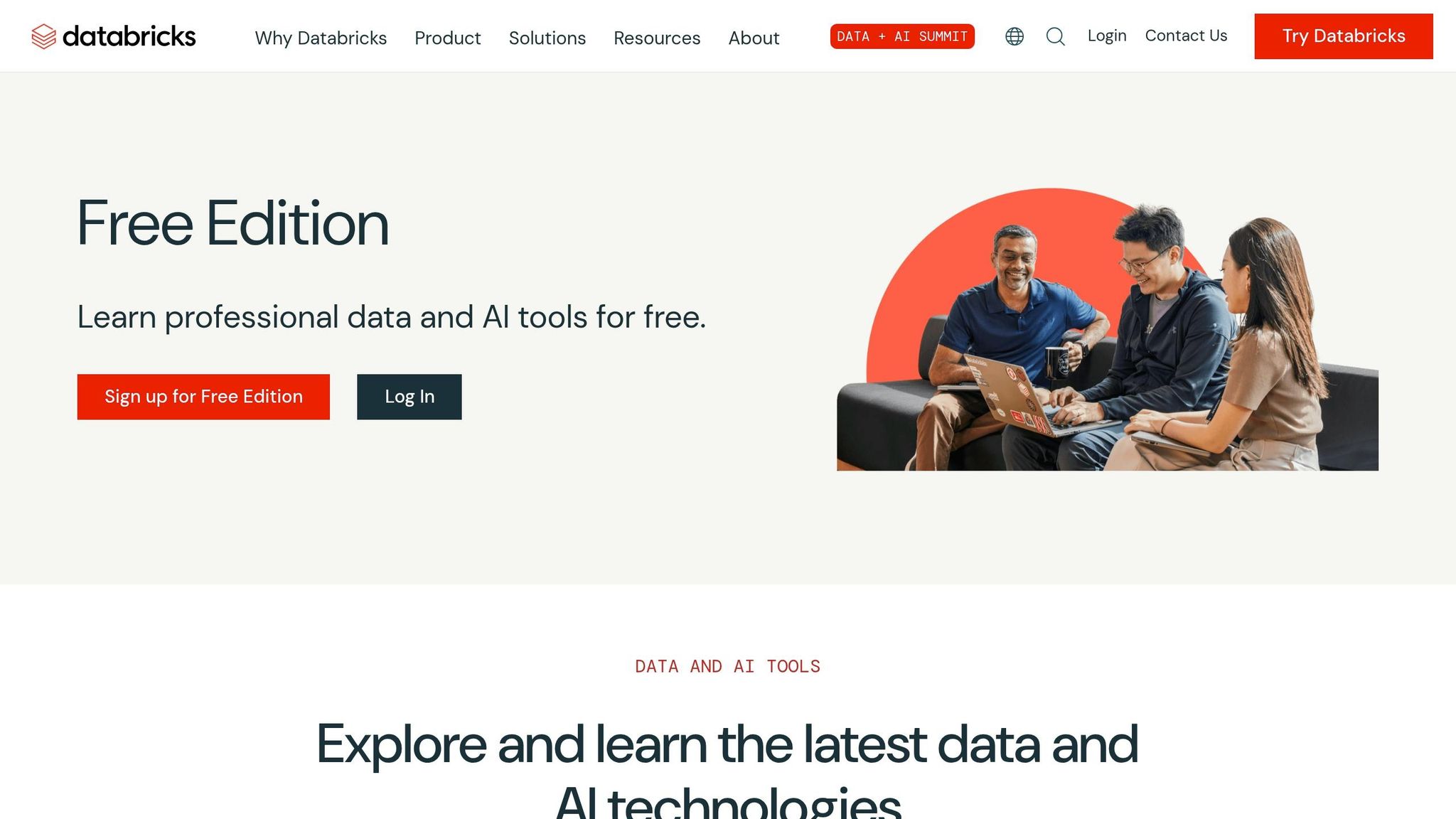
Databricks Free Edition is ideal for those who want to explore the platform without incurring costs. While it has limitations compared to the paid version, it offers sufficient functionality for learning and basic projects. Key benefits include:
- No time constraints: Unlike free trials with expiration dates, the Free Edition is free forever.
- Accessible for learners: It’s perfect for exploring Spark-based workflows and building foundational knowledge.
- Community-driven: The Free Edition encourages experimentation with open-source tools, making it a great choice for aspiring professionals.
sbb-itb-61a6e59
Step 1: Setting Up Databricks Free Edition
1.1 Create an Account
To begin, visit the Databricks website and select Databricks Free Edition. Be cautious not to choose the "Free Trial", as it expires in 14 days and requires payment afterward. Use your Google or Microsoft account to complete the sign-up process.
Pro Tip: Once you've logged in, confirm that you are in the Free Edition. This can be identified by the small "Free Edition" label on the interface.
Step 2: Setting Up a GitHub Repository
Version control is critical in any modern software or data engineering workflow. To integrate Databricks with GitHub, start by creating a repository.
2.1 Creating a Repository
- Log into GitHub and click the + icon in the top-right corner to create a new repository.
- Name your repository (e.g.,
Databricks-Demo) and select Public or Private, depending on your preference. - Initialize the repository with a
READMEfile and a.gitignorefile (use Python as the preset language). - Once created, copy the repository URL.
2.2 Clone Locally
On your local machine, open a terminal and navigate to the desired directory (e.g., Desktop). Use the following command to clone the repository:
git clone <repository-url>
Step 3: Connecting Databricks to GitHub
With your GitHub repository ready, it’s time to integrate it into Databricks.
3.1 Setting Up Git Integration in Databricks
- Inside Databricks, navigate to your Workspace.
- Choose the option to Create Git Folder and paste the GitHub repository URL.
- If GitHub integration hasn’t been configured yet, you’ll see a prompt to connect Databricks to your GitHub account. Follow these steps:
- Grant Databricks access to your GitHub account by installing the Databricks GitHub app.
- Choose Selective Repository Access to limit Databricks permissions to specific repositories, ensuring a secure and minimal-access setup.
- Once the connection is complete, the Git folder will be created in your Databricks workspace.
Step 4: Working with Databricks and VS Code
A blended workflow between Databricks and Visual Studio Code lets you leverage the best of both worlds. While Databricks excels in Spark-based workflows, VS Code provides a versatile environment for editing scripts, documentation, and testing.
4.1 Syncing Changes from Databricks to GitHub
-
In Databricks, create a notebook within the Git folder. For example:
-
Add a Markdown cell with the command
%mdto document your work. -
Add Python code to the notebook as needed:
print("Hello from Databricks")
-
Add a Markdown cell with the command
-
Save your changes and commit them to GitHub:
- Use the in-built Git controls in Databricks to pull, commit, and push changes.
- Note: If you encounter errors during this step, double-check your GitHub app configuration.
4.2 Syncing Changes from VS Code to GitHub
- Open the cloned repository in VS Code.
-
Pull the latest changes from GitHub using:
git pull -
Make edits locally in VS Code and push updates using:
git add . git commit -m "Your commit message" git push - In Databricks, sync your workspace by pulling the latest changes.
4.3 Switching Between Tools
By alternating between Databricks for Spark processing and VS Code for testing/documentation, you create a highly efficient workflow. Use GitHub as the central repository to sync all changes.
Overcoming Common Issues
- GitHub Permissions Error: If Databricks fails to push changes, ensure that the Databricks GitHub app has the proper permissions for the repository. Navigate to your GitHub Settings > Applications to manage permissions.
-
Kernel Issues in VS Code: Setting up a Python environment locally ensures that your Jupyter Notebooks run smoothly. Use the following command to set up the environment:
pip install ipykernel
Key Takeaways
- Databricks Free Edition: A cost-effective way to explore Databricks for data engineering and AI workflows.
- GitHub Integration: Enables version control and collaboration, even in the Free Edition.
- Blended Workflows: Use Databricks for Spark-specific tasks and VS Code for documentation, testing, and exploratory coding.
- Practical Git Usage: Synchronize changes seamlessly between your local machine, GitHub, and Databricks by mastering Git commands.
- Permission Management: Adhere to the principle of least privilege by limiting Databricks app access to specific repositories.
Final Thoughts
For mid-level tech professionals aiming to advance in data engineering or AI engineering, mastering Databricks Free Edition with GitHub integration provides a strong foundation. This workflow not only improves productivity but also aligns with industry best practices for version control and collaboration. By leveraging both Databricks and VS Code, you can streamline your projects and focus on building your expertise in high-demand data and AI tools.
Start exploring this setup today, and unlock the potential to work more efficiently in your data-driven career journey. Whether you're running Spark jobs or testing Python scripts, this blended approach is a robust method for advancing your technical skills.
Source: "Databricks free edition setup with github integration" - AIgineer, YouTube, Feb 28, 2026 - https://www.youtube.com/watch?v=mzc_zzt5bfU