
Structured Streaming for Live Video on Databricks
Databricks and Structured Streaming make real-time video processing simpler and faster. Here's why it matters:
- Unified Approach: Process both batch and streaming video data using Spark Structured Streaming.
- Low Latency: Achieve sub-100ms latencies with Real-Time Mode.
- Scalability: Handle millions of events per second with tools like RocksDB for state management.
- Medallion Architecture: Organize data into Bronze (raw), Silver (cleaned), and Gold (aggregated) layers for efficient insights.
- Real-World Use Cases: Companies like MakeMyTrip and Coinbase have improved performance and reduced latency using this system.
Whether you're working with live video streams or stored video files, Databricks offers tools like Auto Loader, Delta Lake, and Project Lightspeed to simplify ingestion, transformation, and aggregation. Optimize your environment with the right cluster setup, libraries, and monitoring tools for seamless performance. To build these systems effectively, consider pursuing a data engineering certification to master big tech standards.
Real-Time Data Pipelines Made Easy with Structured Streaming in Apache Spark | Databricks
sbb-itb-61a6e59
Setting Up Databricks for Live Video Streaming
To process live video data effectively, you'll need to configure your Databricks environment with care. This includes choosing the right cluster setup, ensuring all necessary libraries are installed, and establishing connections to your video sources.
Cluster Configuration for Video Workloads
For production-level video streaming, Jobs compute is the preferred option, offering both reliability and cost efficiency. If ultra-low latency - down to 5 milliseconds - is required, make sure your cluster uses Databricks Runtime 16.4 LTS or higher with dedicated, single-user compute. Enable Photon acceleration for faster processing and turn off standard autoscaling.
It's important to note that standard autoscaling doesn't work well with Structured Streaming jobs because it struggles to scale down during operations. Instead, use Lakeflow Spark Declarative Pipelines with enhanced autoscaling. For resource planning, ensure your cluster has enough task slots to manage all query stages. For example, if you have 8 source partitions and 20 shuffle partitions, you'll need at least 28 task slots.
If you’re running multiple streaming queries on the same cluster, assign each query to a separate scheduler pool. This prevents bottlenecks caused by "first in, first out" delays and ensures smooth resource distribution.
Once your cluster is ready, the next step is to install the required libraries and dependencies.
Required Libraries and Dependencies
Databricks Runtime comes equipped with most of the libraries you'll need. It includes support for Structured Streaming, Delta Lake, and native connectors for systems like Kafka, AWS Kinesis, Google PubSub, and Pulsar. For processing video files stored in cloud environments, Auto Loader (cloudFiles) is an excellent tool for incremental ingestion.
If you're using Databricks Runtime 13.3 LTS or above, you’ll benefit from kafka-clients version 2.8.0 or later, which supports idempotent writes by default. It also includes built-in functions like from_avro and from_protobuf for data deserialization.
For advanced video processing tasks - like extracting frames with OpenCV or performing deep learning inference with PyTorch - install these libraries through the Cluster "Libraries" tab. This ensures they’re accessible across all worker nodes. As Ryan Chynoweth from Databricks explains:
"Typically with video processing you would process each frame of the video (which is very similar to image processing)".
You can use the foreachBatch method to apply these specialized libraries to micro-batches of video data.
Once your libraries are set up, you can focus on connecting to your video data sources.
Connecting to Video Data Sources
Live video data typically arrives through two main channels: message bus systems for real-time streaming or cloud object storage for near real-time ingestion. For ultra-low latency use cases - like fraud detection or threat monitoring - connect to systems such as Apache Kafka, AWS Kinesis, or Azure Event Hubs using spark.readStream.format("kafka").
When video files or frames are stored in cloud environments like Amazon S3, Azure ADLS, or Google Cloud Storage, use Auto Loader with spark.readStream.format("cloudFiles"). To handle high-volume ingestion, enable cloudFiles.useNotifications to integrate with cloud-native tools like AWS SQS or Azure Event Grid, which are more efficient than directory listing. Auto Loader can process millions of files per hour in near real-time.
By default, Kafka records arrive with key and value columns in binary format, making them ideal for raw video frames. To ensure your pipeline keeps up with incoming data, monitor metrics such as avgOffsetsBehindLatest and estimatedTotalBytesBehindLatest.
Finally, always assign a unique checkpointLocation for each streaming writer. This tracks processed records and ensures fault tolerance, allowing your pipeline to recover seamlessly from failures without losing data.
These steps lay the groundwork for high-performance, real-time video analytics using Databricks.
Ingesting and Processing Video Data with Structured Streaming
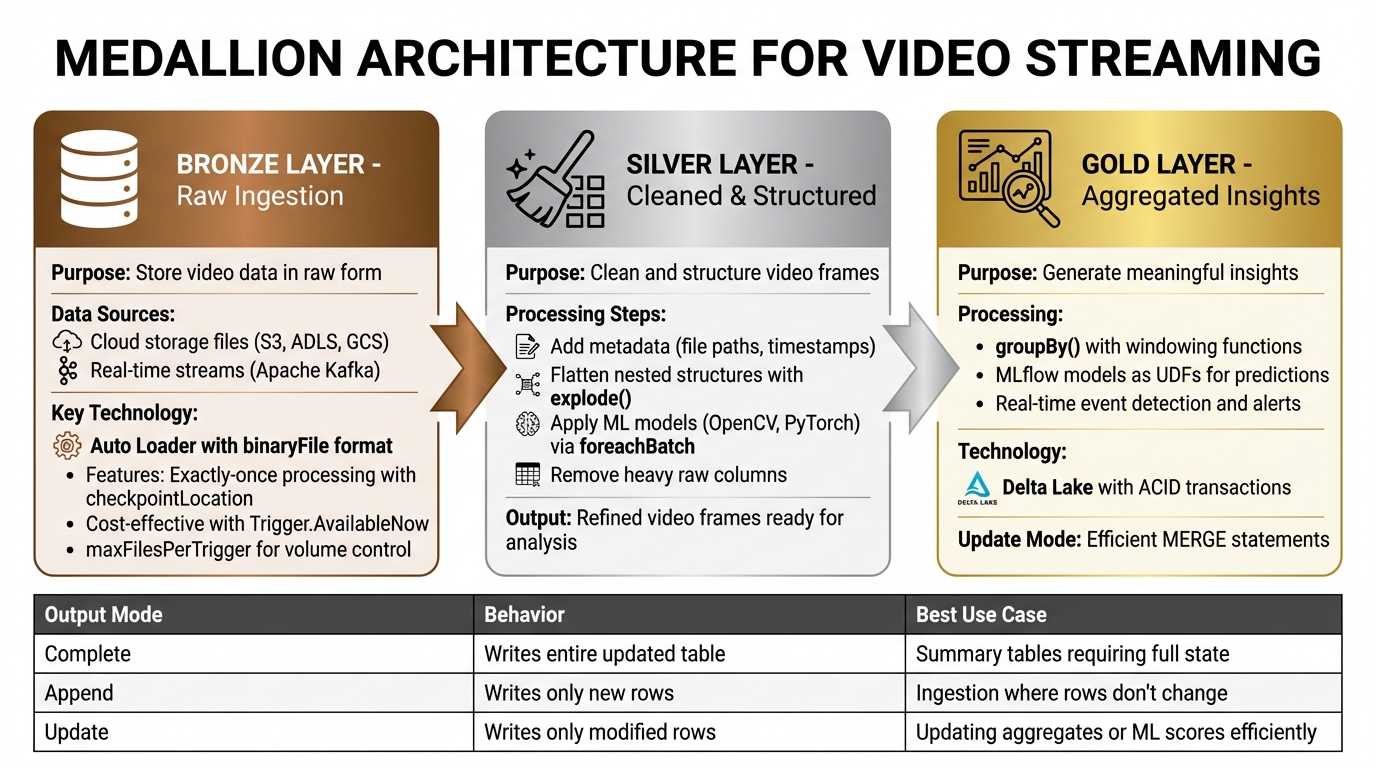
Medallion Architecture for Video Streaming: Bronze, Silver, Gold Data Layers
Once your Databricks environment is ready, you can start building a video streaming pipeline that follows the Medallion Architecture. This approach organizes data into three layers - Bronze, Silver, and Gold - each serving a specific purpose in refining raw video data into meaningful insights.
Ingesting Video Streams into the Bronze Layer
The Bronze layer is all about storing video data in its raw form. How you ingest data depends on its source: files in cloud storage or real-time frames via a message bus like Apache Kafka.
For cloud-based video files, you can use Auto Loader with the binaryFile format to ingest raw bytes. This method skips decoding, reducing both disk and network usage. Here's a sample implementation:
bronze_stream = (spark.readStream
  .format("cloudFiles")
  .option("cloudFiles.format", "binaryFile")
  .option("cloudFiles.schemaLocation", "/mnt/schema/video")
  .option("maxFilesPerTrigger", 100)
  .load("/mnt/video-input/")
)
If you're working with Kafka streams, ingest data with key, value (in binary), topic, partition, offset, and timestamp columns. Limit data volume using maxOffsetsPerTrigger.
Always assign a unique checkpointLocation to your streaming writer. This ensures exactly-once processing. For cost-effective incremental batch processing, use Trigger.AvailableNow to maintain streaming logic.
With raw video data securely ingested, you can move on to the Silver layer to refine the stream.
Transforming Video Data in the Silver Layer
At the Silver layer, raw video streams are cleaned and structured. Each video frame is treated as an individual unit, much like an image in typical processing tasks.
To enhance traceability, add metadata like source file paths and processing timestamps using _metadata.file_path and current_timestamp(). For nested data structures, such as arrays of detected objects or frame metadata, use explode() to break them down and selectExpr or withColumn to flatten complex fields into simpler columns.
For tasks like frame scoring or object detection, take advantage of machine learning libraries installed earlier. Use foreachBatch to process micro-batches efficiently and apply models like OpenCV or PyTorch. Combine this with merge logic to handle upserts and avoid duplicates.
Once you've extracted useful features or frames, drop heavy raw columns (e.g., original binary blobs). This reduces storage costs and improves performance for downstream processing. Enable cloudFiles.schemaLocation with Auto Loader to handle changes in video metadata formats without disrupting the pipeline.
With refined video frames in place, you can move to the Gold layer to aggregate insights.
Aggregating Video Streams in the Gold Layer
In the Gold layer, refined data is aggregated into meaningful insights. For video workloads, pre-trained models can score individual frames to detect specific events or generate alerts.
Use groupBy() and windowing functions (e.g., 1-hour windows) to calculate metrics over time. You can load MLflow models as User Defined Functions (UDFs) to make real-time predictions directly in the pipeline. Ryan Chynoweth explains:
"Once you have a streaming dataframe you would likely want to use a foreach batch function to score each image/frame using your ML/DL model that you previously trained to identify any alerts that you are interested in".
To efficiently update Gold tables, use Update Mode with foreachBatch and a MERGE statement. This approach is faster than Complete Mode for large datasets. Configure txnAppId and txnVersion to ensure exactly-once processing and avoid duplicates during retries. Delta Lake is the preferred sink, offering ACID transactions and support for concurrent batch and streaming operations.
| Output Mode | Behavior | Best Use Case |
|---|---|---|
| Complete | Writes the entire updated table | Summary tables requiring the full state |
| Append | Writes only new rows | Ingestion where rows don't change |
| Update | Writes only modified rows | Updating aggregates or ML scores efficiently |
Optimizing and Monitoring Streaming Pipelines
Performance Tuning for Video Streaming
Fine-tuning video streaming pipelines is essential to handle large data payloads efficiently. One effective tactic is switching from the default HDFS-backed state store to RocksDB for stateful operations like windowed aggregations. This approach shifts state management out of JVM memory, reducing garbage collection (GC) pauses and improving overall performance. To further optimize, enable asynchronous checkpointing by setting spark.databricks.streaming.statefulOperator.asyncCheckpoint.enabled and spark.sql.streaming.stateStore.rocksdb.changelogCheckpointing.enabled to true. These configurations allow state snapshots to run in the background, cutting down micro-batch durations.
For hardware, opt for compute-optimized instances with plenty of CPU cores to handle streaming workloads effectively. Enabling the Photon engine can significantly speed up SQL and DataFrame operations, which is especially useful for processing video frames. Adjust spark.sql.shuffle.partitions to match or double the number of available cores for better parallelism. Similarly, set minPartitions equal to the core count for optimal ingestion from Kafka or EventHub. Disabling spark.sql.streaming.noDataMicroBatches can also help avoid wasting resources on empty micro-batches.
Databricks' Project Lightspeed offers impressive latency improvements, reducing it by 3–4× for stateful pipelines processing over 100,000 events per second. For specific workloads, this includes a 76% reduction in p95 latency for Kafka aggregations and a 93% drop in p99 latency for deduplication tasks. When working with Delta tables, tune settings like delta.logRetentionDuration and delta.deletedFileRetentionDuration to avoid slowdowns caused by excessive log files.
Once these optimizations are in place, it's crucial to monitor the performance of your streaming jobs.
Monitoring Streaming Jobs in Databricks
After applying performance tweaks, monitoring your streaming jobs ensures that the changes have the desired effect. Always include .queryName("<name>") in your writeStream code to make metrics easier to identify in the Spark UI. The Streaming tab provides real-time insights into key metrics like input rates, processing rates, and batch durations. To detect backpressure issues, monitor numFilesOutstanding (for Auto Loader) or avgOffsetsBehindLatest (for Kafka) to confirm that your pipeline keeps up with the data source.
For more detailed monitoring, use the StreamingQueryListener interface to send metrics to external services like Azure Event Hubs for long-term storage and alerting. Keep the listener logic simple to avoid overloading the Spark driver. Additionally, track state health by observing metrics like stateOperators.memoryUsedBytes and stateOperators.numRowsTotal, which can help prevent executor crashes. Rahul Gosavi from Databricks offers a critical reminder:
"State growth is gradual - but failures are sudden".
For stateful streams, pay attention to the balance between numRegisteredTimers and numDeletedTimers. If registered timers grow while deletions remain static, it could indicate a watermark misconfiguration or missing state eviction. Lastly, leverage Databricks system tables like system.billing.usage to monitor DBU consumption and identify the most resource-intensive streaming jobs.
Best Practices for Production Deployments
When deploying streaming pipelines in production, use Jobs compute alongside Lakehouse Spark Declarative Pipelines to optimize resource usage. Scheduling streams in "Continuous" mode ensures automatic retries and helps manage costs efficiently.
If you're running multiple streams on a single cluster - often 10 to 30 concurrent queries - set up scheduler pools to prevent any single, resource-heavy query from monopolizing resources. Configure your streaming jobs to restart automatically with exponential backoff to handle transient issues or schema evolution gracefully. With Databricks processing over 14 million Structured Streaming jobs weekly, these practices are essential for maintaining reliable and cost-effective video streaming pipelines.
Conclusion and Next Steps
Key Takeaways
Using Databricks with Structured Streaming to build live video streaming pipelines offers a unified API for both batch and streaming workloads. This approach simplifies the transition from prototyping to production with minimal adjustments to your code. Databricks ensures reliable, fault-tolerant streaming with exactly-once processing guarantees. By unifying batch and streaming, it removes the need for separate systems, streamlining data processing.
For video workloads, each frame can be treated as an individual record, allowing real-time application of machine learning models. Complex stateful operations are efficiently managed with RocksDB, and the Medallion Architecture supports incremental data refinement through Bronze, Silver, and Gold layers using Delta Lake. Production setups often run 10–30 streams on a single cluster, optimizing resources, while real-time processing can achieve end-to-end latency as low as 300 milliseconds.
To ensure fault tolerance, always configure a unique checkpointLocation, and use .queryName for easier stream identification in the Spark UI. For batch video data processing, Trigger.AvailableNow is a cost-effective option, as it processes all available data and shuts down compute resources when done.
To build on this knowledge, explore advanced training opportunities that focus on real-world challenges like low-latency streaming and efficient state management.
Further Learning with DataExpert.io Academy

Interested in taking your Databricks and Spark expertise to the next level? DataExpert.io Academy offers tailored training programs to help you master real-time data pipelines and production-grade streaming applications. These programs include hands-on capstone projects, access to tools like Databricks, Snowflake, and AWS, as well as resources for career development and guest speaker sessions.
Options include the All-Access DataExpert.io Subscription at $125/month, which provides over 250 hours of content and community access, or focused boot camps like the 15-week 2026 Data and AI Engineering Challenge ($7,497), featuring 15 guest speakers and dedicated mentor support. These programs address the same challenges discussed here, from advanced state management with RocksDB to real-time video inference with machine learning, bridging the gap between theory and production-ready solutions.
FAQs
How can I stream video into Databricks without decoding it?
You can stream video into Databricks without the need for decoding by leveraging the Databricks Files API with OAuth 2.0 authentication. This approach allows you to stream video files directly from Unity Catalog volumes, which support range requests. These range requests enable features like seeking and progressive loading.
By streaming raw video data in chunks, this method ensures efficient memory use and smooth playback. Plus, it eliminates the need to process or decode the video content, making it a straightforward and resource-friendly solution.
What is the best cluster setup for low-latency video streaming?
For low-latency video streaming using Structured Streaming on Databricks, it's important to configure the cluster thoughtfully. First, disable auto-scaling to maintain consistent performance. Next, schedule your jobs in continuous mode, which is designed for low-latency processing. Additionally, leverage the RocksDB state store and enable asynchronous checkpointing to further reduce delays. Together, these steps help streamline live video processing and improve overall performance.
How do I ensure exactly-once processing for a video stream in production?
To ensure exactly-once processing for a video stream with Databricks' Structured Streaming, it's crucial to configure a unique checkpointLocation for each query. This setup helps the system keep track of source offsets and resume seamlessly from the last recorded state in case of failures.
Here are some best practices to enhance reliability:
- Enable checkpointing: This ensures data consistency by saving progress at regular intervals.
- Use write-ahead logs: These logs safeguard against data loss by recording changes before they are applied.
- Simplify your code: Avoid unnecessary logic or operations that might introduce instability.
Additionally, pay attention to job scheduling and auto-scaling. Properly timing your jobs and managing scaling behavior in production environments can help maintain consistent performance and prevent disruptions.